Cloud relay guide
When Banban and your computer are on the same Wi-Fi, they find each other over the LAN and there is nothing to set up. When they are on different networks (work laptop + Banban at home, a laptop on a phone hotspot, the future 4G model), use the cloud relay: both connect to the relay server, which forwards approvals and notifications within your own account.
 Paiban Hub (work laptop) ──wss──▶ cloud relay ◀──wss── Banban (home)
                                       ▲
                    Paiban mini program (WeChat login = account)
Required versions
| Part | Minimum |
|---|---|
| Desktop Hub | paiban-hub-v0.2.0 |
| Firmware | paiban-firmware-v0.5.0 |
| Mini program | paiban-miniapp-v0.5.0, with WeChat Cloud enabled and WeChat login |
1. Log in the computer (once per computer)
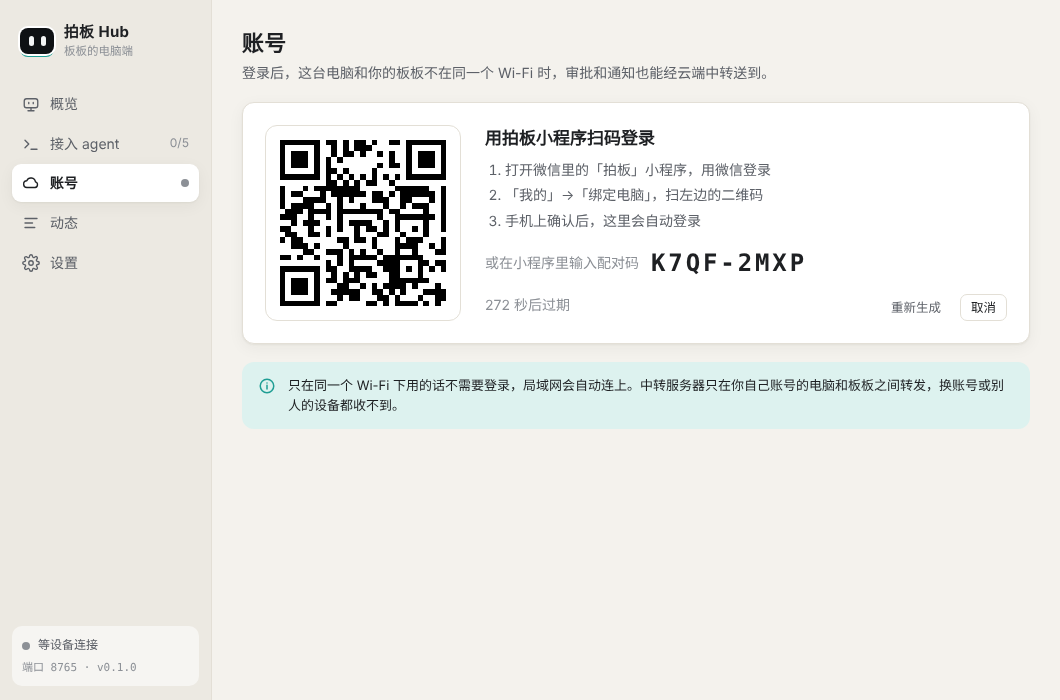
- In the Hub, open 账号 (Account) → 登录 (Log in) — the Hub's interface is in Chinese. A QR code and an 8-character pairing code appear (valid for 5 minutes).
- On your phone open the Paiban mini program → 我的 (Me) → 电脑与云端中转 (Computers & cloud relay) → 扫码绑定电脑 (Scan to bind) (or type the pairing code).
- The mini program shows the computer's name; confirm, and the Hub logs in by itself and shows "
's account · relay online".
The login is stored encrypted by the OS (DPAPI on Windows), so it survives restarts.
2. Bind Banban to the account (once per device)
Either way works. Both require pressing confirm on Banban: the screen shows "确认绑定账号" (confirm binding); click BOOT or tilt right = accept, double-click or tilt left = reject.

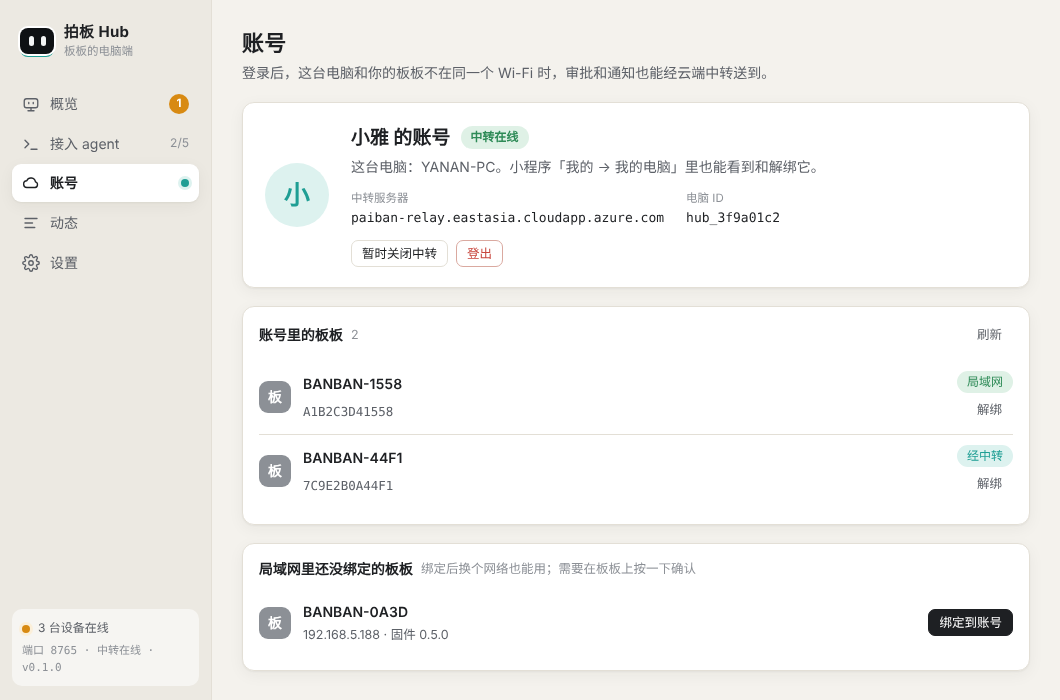
- From the computer: while Banban is on the same Wi-Fi as this computer, go to 账号 → 局域网里还没绑定的板板 → 绑定到账号 (Account → unbound devices on this LAN → Bind).
- From the mini program: after Wi-Fi setup it asks whether to bind; later you can bind under 设置 → 云端中转 (Settings → Cloud relay).
Once bound, Banban's Info page shows 云端中转: 电脑在线 (relay: computer online).
3. Day to day
Nothing to do:
- Same Wi-Fi: LAN (fastest).
- Different networks: the relay, automatically.
- A device connected both ways only uses the LAN, so approvals never pop up twice; if the LAN drops it switches to the relay.
Log out / unbind
| To… | Where |
|---|---|
| Log this computer out | Hub 账号 → 登出 (Account → Log out) (its token is revoked on the relay too) |
| Remove a computer remotely (e.g. lost laptop) | Mini program Me → Computers & cloud relay → tap it → Unbind |
| Remove a Banban from the account | Unbind next to it on the Hub's Account page, or in the mini program |
| Pause the relay | Hub 账号 → 暂时关闭中转 (Account → Pause relay) |
Giving Banban away: unbind it first. If you forget, the new owner can still press confirm on the device and bind it to their account — the relay uses the device's claim key to decide who physically has it.
Is it safe?
- Account isolation: every token belongs to one account; the relay only forwards between computers and devices of the same account, and it fills in
fromitself so nobody can spoof a peer. - The account is your WeChat: who owns a computer or device is confirmed only through the mini program's cloud function, with the openid supplied by WeChat — the front end cannot change it.
- Devices cannot be stolen remotely: knowing a device id is not enough; binding needs the claim key stored in the device, which it only reveals after you press confirm.
- Pairing codes resist guessing: 8 characters, 5-minute expiry, single use; an account is locked for 10 minutes after 10 wrong codes. The computer shows whose account it joined, so you can log out immediately if it is not yours.
- Encrypted in transit: TLS everywhere (Let's Encrypt). The server stores only token hashes and an HMAC of the openid, never the openid itself.
- Not done yet: messages are forwarded in plaintext on the server (it can see approval text). End-to-end encryption is next, so the relay can neither read nor forge approvals.
FAQ
The Hub says "这台电脑的登录已失效" (login expired): it was unbound in the mini program, or the relay URL changed. Log in again.
Banban stays at "云端中转: 连接中…" (connecting): the device needs the correct time (NTP) before it can verify the certificate — check it can reach the internet. Firmware older than 0.5.0 has no relay support.
The mini program says the relay secret is not configured: see "Deployment and admin" below.
Deployment and admin (for maintainers)
Where the relay runs
An AKS (Kubernetes, free-tier control plane) cluster in Azure East Asia (Hong Kong), at https://paiban-relay.eastasia.cloudapp.azure.com. Code in relay/, infrastructure in infra/aks/.
            Azure load balancer (public IP + DNS name)
                       │
          Traefik ×2 (HTTPS; Let's Encrypt certificates renewed by cert-manager)
                       │
            relay ×2 (on different nodes; either can take any connection)
                       │  LISTEN / NOTIFY between replicas
                  PostgreSQL (8 GiB disk, backed up to Blob daily, kept 30 days)
| Item | Size | Per month |
|---|---|---|
| Nodes | 2 × Standard_B2pls_v2 (Arm64, 2 vCPU / 4 GiB) |
US$68 |
| Node OS disks | 2 × 30 GB | US$10 |
| Load balancer + public IP | Standard | US$22 |
| Database disk + backups | 8 GiB Standard SSD + Blob (Cool) | US$2 |
| Total | about US$100 |
Why nothing drops:
- Two relay replicas run on two nodes. A computer and a device may sit on different replicas, which forward to each other through PostgreSQL LISTEN/NOTIFY.
- Updates start a new replica and wait until it is ready before stopping an old one. The old one first stops taking traffic, then closes its sockets with code 1012 ("service restart").
- Clients reconnect to the other replica at once. Their presence is kept for 20 s, so the other side never sees them go offline.
- Messages sent to them meanwhile wait in a mailbox and are delivered on reconnect; the Hub and the firmware queue their own outgoing messages as well.
- Azure patches the nodes on Sundays 03:00–07:00 Hong Kong time, one node at a time; a PodDisruptionBudget keeps at least one replica running.
- Every deploy runs a live check: approvals go back and forth during a rolling restart, and the deploy only passes if all 250 round trips arrive and neither side saw a disconnect.
How updates ship (GitHub Actions)
Push changes under relay/ or infra/aks/ to main and Deploy relay (AKS) runs (or start it from Actions with Run workflow):
- Start a throwaway PostgreSQL and run the full test suite (including two replicas and a rolling restart), then bundle a single
server.js. - Log in to Azure with OIDC — no Azure password is stored; Azure only trusts tokens from this repo's
mainbranch. - Run Bicep: the cluster and backup storage stay as they are when nothing changed.
- Install / upgrade Traefik and cert-manager. On the first deploy, generate secrets inside the cluster (
RELAY_SECRET,ACCOUNT_SALT, database password); they are reused and never printed. - Put the new
server.jsin a ConfigMap and roll the deployment. No image build and no registry are needed. - Check
/healthzover HTTPS, then run the zero-downtime check. Results show in the run summary.
Using your own domain: add it to EXTRA_HOSTS in infra/aks/config.env (e.g. relay.example.com), CNAME it to paiban-relay.eastasia.cloudapp.azure.com and push; the certificate is issued automatically.
First time: let the cloud function call the relay
The cloud function uses an admin key RELAY_SECRET for the relay's admin API (confirm pairing, register devices). Put the same value in two places:
- Generate it in Azure Cloud Shell or any terminal:
openssl rand -hex 32. - GitHub repo Settings → Secrets and variables → Actions → New repository secret: name
RELAY_SECRET. Then run Deploy relay (AKS) once from Actions so the cluster switches to it. - WeChat Cloud console → Cloud functions →
paiban→ Configuration → Environment variables:RELAY_SECRET= the same value;RELAY_URLis optional (defaults to the URL above).
Testing without the mini program
With a public repo, Actions run logs (including the inputs of manual runs) are visible to everyone. Relay admin masks its arguments and shortens computer names, but do not enter real users' openids here: real accounts are managed through the mini program; for troubleshooting run
az aks get-credentials -g paiban-rg -n paiban-aks --admin && kubectl -n paiban exec deploy/relay -- node --no-warnings /app/server.js admin list <openid>in Azure Cloud Shell, where only you see the output.
Actions → Relay admin → Run workflow with a command; the output shows in the run summary:
| Command | Does |
|---|---|
pair-info K7QF-2MXP |
Which computer this pairing code belongs to |
pair-confirm K7QF-2MXP <openid> |
Bind the computer to an account (for testing, any fixed string works as openid) |
list <openid> |
Computers and devices of an account |
revoke-hub <hub_id> <openid> / revoke-device <dev_id> <openid> |
Unbind |
logs |
Last 200 log lines |
For example: click Log in on the Hub → run pair-confirm <code> test-user in Relay admin → the Hub logs in → bind the LAN device from the Hub's Account page. Once the mini program is live, a WeChat login is a different openid, so bind again there.